Contents
 Introduction
Sending email through Azure Communication Services (ACS) typically involves either the ACS SDK or the ACS REST API. When working from PowerShell — especially inside Azure Automation runbooks — you need a solution that can authenticate flexibly, handle attachments, and produce clear diagnostic output for troubleshooting.
Common challenges when sending ACS email from PowerShell include:
- Choosing between connection strings, endpoint/key pairs, or managed identity authentication
- Correctly signing REST API requests with HMAC-SHA256
- Handling file attachments with proper MIME types
- Polling for asynchronous delivery status
- Producing useful correlation identifiers for Microsoft Support
To address all of these, I built a PowerShell script that sends email through the ACS REST API with support for multiple authentication methods, optional file attachments, delivery status polling, and a structured diagnostic summary.
This post explains how the script works, how to configure it, and what each phase of the execution does internally.
 How to get it
You can get a copy of the script used in this article here:
Send-EmailAzureAutomationACSManagedIdentity.ps1  Direct Download Link
or
Send-EmailAzureAutomationACSManagedIdentity.txt Text Format Alternative Download Link
 What the Script Does
This script sends email through the Azure Communication Services REST API with full diagnostic output.
Key capabilities include:
- Multiple authentication methods — manual connection string, endpoint + access key, Azure managed identity key lookup, or interactive Azure login
- Automatic ACS key retrieval — fetches Primary or Secondary keys directly from the ACS resource in Azure
- File attachment support — reads files from disk, Base64-encodes them, and maps extensions to supported MIME types
- HMAC-SHA256 request signing — builds the signed HTTP headers required by the ACS REST API
- Delivery status polling — polls the ACS operation endpoint with linear back-off until the email is delivered or the retry limit is reached
-
Diagnostic summary output — logs sender, recipients, subject, timestamps, operation IDs, and
x-ms-request-idfor troubleshooting with Microsoft Support - Dual environment support — works from Azure Automation (managed identity) and from workstations or Cloud Shell (interactive sign-in)
- Azure Automation friendly — parameter sets were intentionally avoided so the Azure Automation test pane displays parameters consistently
 Prerequisites
Before running the script, ensure the following requirements are met:
-
Az PowerShell modules installed (required only for automatic ACS key lookup):
-
Az.Accounts(version 5.0.0 or greater) -
Az.Communication(version 0.6.0 or greater)
-
- An Azure Communication Services resource with email configured
- A verified sender address on the ACS resource
- If using managed identity: an Azure Automation Account with a system-assigned or user-assigned managed identity enabled and the Communication and Email Service Owner role assigned on the ACS resource
Note
If you provide authentication details manually (connection string, or endpoint + access key), the Az modules are not required. The script only imports them when automatic Azure-based key lookup is needed.
 Argument List
The parameters are organized into four groups based on their purpose.
1. Manual Authentication (Local / Testing)
| Parameter | Mandatory | Type | Description |
|---|---|---|---|
| ConnectionString | No | String | Full ACS connection string. If provided, the script uses it directly and skips Azure lookup. |
| Endpoint | No | String | ACS endpoint URL. Use together with AccessKey. |
| AccessKey | No | String | ACS access key. Use together with Endpoint. |
2. Azure Automation / Managed Identity
| Parameter | Mandatory | Type | Description |
|---|---|---|---|
| ResourceGroupName | No | String | Resource group containing the ACS resource. Required for automatic key lookup. |
| CommunicationServiceName | No | String | Name of the ACS resource. Required for automatic key lookup. |
| SubscriptionId | No | String | Subscription to switch into before retrieving ACS keys. |
| TenantId | No | String | Optional tenant for Azure sign-in. Usually not needed for managed identity. |
| UseManagedIdentity | No | String |
Auto (default), True, or False. Controls whether managed identity is used. |
| ManagedIdentityClientId | No | String | Client ID for user-assigned managed identity. Leave blank for system-assigned. |
| KeyType | No | String |
Primary (default) or Secondary. Which ACS key to retrieve from Azure. |
3. Email & Content Settings
| Parameter | Mandatory | Type | Description |
|---|---|---|---|
| SenderAddress | No | String | Sender address allowed for your ACS Email setup. |
| RecipientAddresses | No | String[] | One or more recipient email addresses. |
| Subject | No | String | Email subject line. If blank, auto-generated with attachment file names. |
| AttachmentPaths | No | String[] | Full file paths to attach. Leave as @() for no attachments. |
4. Execution & Timeout Settings
| Parameter | Mandatory | Type | Description |
|---|---|---|---|
| MaxPollRetries | No | Int | Maximum polling attempts for delivery status. Default: 10. |
| PollBaseDelaySec | No | Int | Base seconds between poll attempts. Default: 3. |
| RequestTimeoutSec | No | Int | HTTP request timeout in seconds. Default: 30. |
 How to use it
Example 1 — Manual connection string
.\Send-EmailAzureAutomationACSManagedIdentity.ps1 `
    -ConnectionString "endpoint=https://my-acs.communication.azure.com;accesskey=BASE64KEY==" `
    -SenderAddress "[email protected]" `
    -RecipientAddresses @("[email protected]") `
    -Subject "Test Email from ACS"
Example 2 — Endpoint and access key
.\Send-EmailAzureAutomationACSManagedIdentity.ps1 `
    -Endpoint "https://my-acs.communication.azure.com" `
    -AccessKey "BASE64KEY==" `
    -SenderAddress "[email protected]" `
    -RecipientAddresses @("[email protected]")
Example 3 — Azure Automation with managed identity
.\Send-EmailAzureAutomationACSManagedIdentity.ps1 `
    -ResourceGroupName "RG-ACS" `
    -CommunicationServiceName "my-acs-resource" `
    -SubscriptionId "00000000-0000-0000-0000-000000000000" `
    -UseManagedIdentity "True" `
    -SenderAddress "[email protected]" `
    -RecipientAddresses @("[email protected]")
Example 4 — Interactive Azure login with auto-discovery
.\Send-EmailAzureAutomationACSManagedIdentity.ps1 `
    -ResourceGroupName "RG-ACS" `
    -CommunicationServiceName "my-acs-resource" `
    -SubscriptionId "00000000-0000-0000-0000-000000000000" `
    -UseManagedIdentity "False" `
    -SenderAddress "[email protected]" `
    -RecipientAddresses @("[email protected]")
Example 5 — With file attachments
.\Send-EmailAzureAutomationACSManagedIdentity.ps1 `
    -ConnectionString "endpoint=https://my-acs.communication.azure.com;accesskey=BASE64KEY==" `
    -SenderAddress "[email protected]" `
    -RecipientAddresses @("[email protected]") `
    -AttachmentPaths @("C:\Reports\report.pdf", "C:\Logs\diagnostics.txt") `
    -Subject "Diagnostic Report with Attachments"
 How It Works Internally
Step 1 — Module Import and Version Validation
The script finds and imports the newest installed versions of Az.Accounts and Az.Communication that meet the minimum version requirements. This prevents older incompatible versions from being loaded first in Azure Automation or local sessions.
Step 2 — Resolve Authentication Method
The script evaluates the supplied parameters in a fixed precedence order:
- Full connection string → parse and use immediately
- Endpoint + AccessKey → build a connection string and use
- Azure-based key lookup → authenticate to Azure, fetch keys from the ACS resource
Manually supplied credentials always take priority over automatic Azure lookup.
Step 3 — Connect to Azure (if needed)
When automatic key lookup is required, the script detects the runtime environment:
-
Azure Automation → connects using
Connect-AzAccount -Identity(system or user-assigned managed identity) - Workstation / Cloud Shell → reuses an existing Azure context or prompts for interactive login
The script also disables AzContextAutosave at the process scope to prevent cross-contamination between runbook jobs.
Step 4 — Retrieve ACS Keys
If using Azure-based lookup, the script calls Get-AzCommunicationServiceKey to retrieve the Primary or Secondary connection string and access key from the ACS resource.
Step 5 — Prepare Attachments
For each supplied file path, the script:
- Validates the file exists
- Reads the raw bytes and Base64-encodes them
- Maps the file extension to a supported MIME type
- Builds the attachment object in the format the ACS REST API expects
Unsupported file extensions cause the script to throw an error listing all supported types.
Supported Attachment Types
The script supports the following file extensions:
| Extension | MIME Type |
|---|---|
| .avi | video/x-msvideo |
| .bmp | image/bmp |
| .csv | text/csv |
| .doc | application/msword |
| .docm | application/vnd.ms-word.document.macroEnabled.12 |
| .docx | application/vnd.openxmlformats-officedocument.wordprocessingml.document |
| .gif | image/gif |
| .htm / .html | text/html |
| .jpeg / .jpg | image/jpeg |
| .json | application/json |
| .mp3 | audio/mpeg |
| .mp4 | video/mp4 |
| .mpeg / .mpg | video/mpeg |
| .odt | application/vnd.oasis.opendocument.text |
| application/pdf | |
| .png | image/png |
| .ppt | application/vnd.ms-powerpoint |
| .pptx | application/vnd.openxmlformats-officedocument.presentationml.presentation |
| .rpmsg | application/vnd.ms-outlook |
| .rtf | application/rtf |
| .tif / .tiff | image/tiff |
| .txt | text/plain |
| .wav | audio/wav |
| .xls | application/vnd.ms-excel |
| .xlsx | application/vnd.openxmlformats-officedocument.spreadsheetml.sheet |
| .xml | application/xml |
| .zip | application/zip |
Step 6 — Build and Sign the Request
The script constructs the email JSON body and signs the HTTP request using HMAC-SHA256. The signing process:
- SHA-256 hashes the request body
- Builds the canonical string-to-sign:
METHOD\nPathAndQuery\nDate;Host;BodyHash - Signs the string with the ACS access key using HMAC-SHA256
- Returns headers including
x-ms-date,x-ms-content-sha256,Authorization, andContent-Type
Step 7 — Send the Email
The script POSTs the email to the ACS REST API endpoint:
POST {endpoint}/emails:send?api-version=2023-03-31
A 202 Accepted response is expected. The script captures the Operation-Location header for status polling and the x-ms-request-id for correlation.
Step 8 — Poll for Delivery Status
The script polls the Operation-Location URL with freshly signed GET requests using linear back-off (3s, 6s, 9s, …). Polling continues until:
- The status changes from
RunningtoSucceededor another terminal state - The maximum retry count is reached
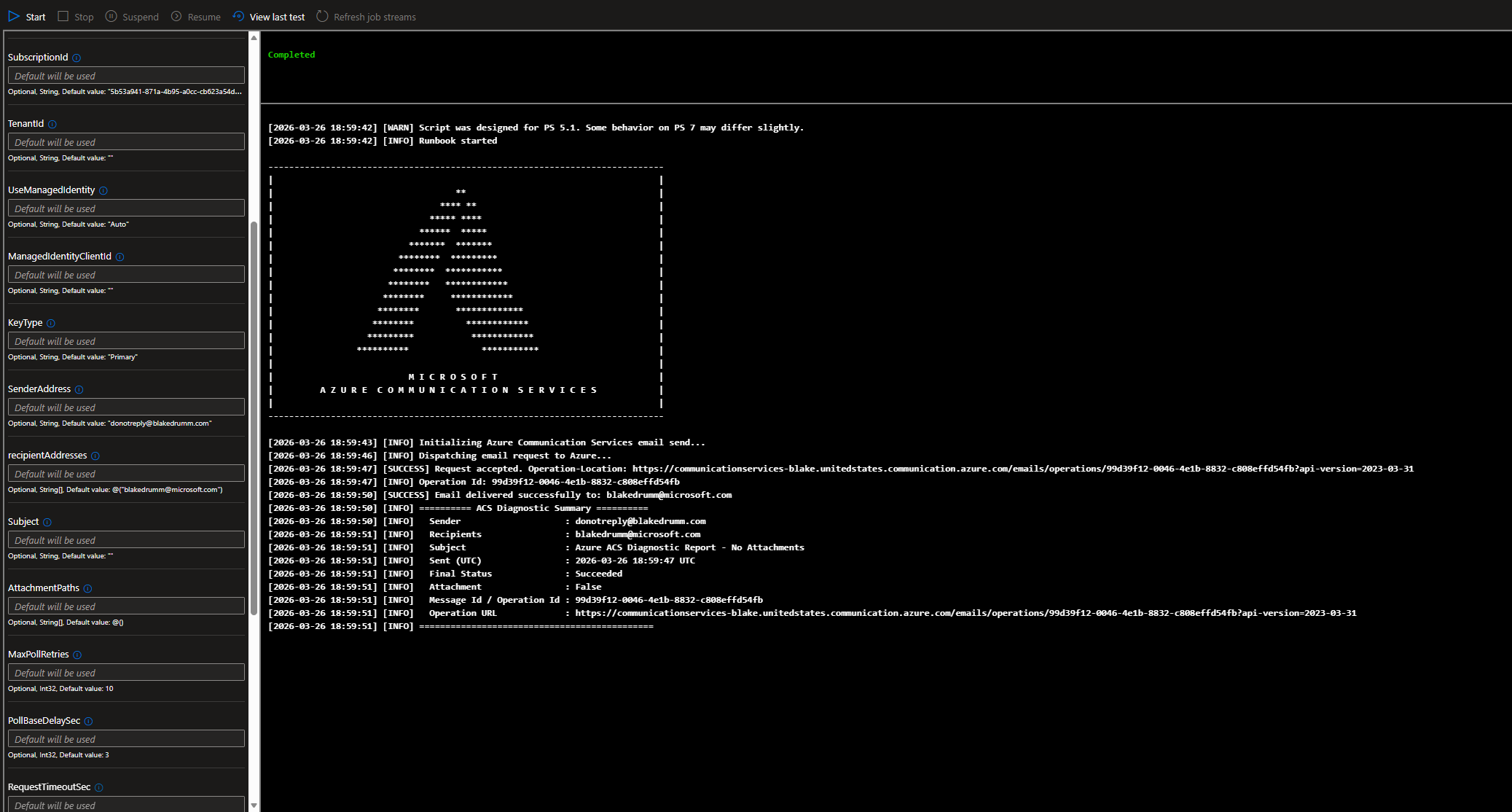
Step 9 — Diagnostic Summary
After completion, the script outputs a structured summary including:
========== ACS Diagnostic Summary ==========
  Sender                    : [email protected]
  Recipients                : [email protected]
  Subject                   : Test Email from ACS
  Sent (UTC)                : 2026-03-26 18:30:45 UTC
  Final Status              : Succeeded
  Attachment                : False
  Message Id / Operation Id : <guid>
  x-ms-request-id           : <guid>
  Operation URL             : https://my-acs.communication.azure.com/emails/operations/<id>?api-version=2023-03-31
=============================================
These identifiers can be shared with Microsoft Support for end-to-end mail-flow troubleshooting.
 Common Issues
401 Unauthorized
Typically caused by:
- Incorrect access key or connection string
- Expired or regenerated key not updated in the script parameters
- Clock skew on the machine running the script (HMAC signing is time-sensitive)
403 Forbidden
Usually means:
- The managed identity does not have the Communication and Email Service Owner role on the ACS resource
- Custom IAM roles are being used (ACS does not support custom RBAC roles)
Sender Address Rejected
The sender address must belong to a verified domain configured in ACS. Ensure the Email Communication Service is linked and the domain is verified.
Email Never Arrives
Possible causes include:
- Recipient spam filtering
- Missing SPF or DKIM records on the sender domain
- Invalid recipient address
- Message size or attachment restrictions (ACS default max is 10MB)
Unsupported Attachment Extension
The script validates file extensions against the supported MIME type list. If an extension is not recognized, the script throws an error listing all supported types.
Polling Times Out
If the polling loop exhausts all retries while the status is still Running, the email may still be processing. Use the logged Operation Id and Operation URL to check status manually.
The Script
<#
.SYNOPSIS
Sends email messages through Azure Communication Services (ACS).
.DESCRIPTION
This script supports multiple authentication methods for sending email through
Azure Communication Services:
1. Manual ACS connection string
2. Manual ACS endpoint + access key
3. Azure Automation / managed identity lookup of ACS keys
4. Interactive local Azure login for ACS key lookup
The script supports optional file attachments, polls the ACS email operation
status, and writes diagnostic output suitable for both local execution and
Azure Automation runbooks.
.AUTHOR
Blake Drumm ([email protected])
.CREATED
March 26, 2026
.VERSION
1.0.0
.NOTES
Automatic ACS key lookup requires:
- Az.Accounts
- Az.Communication
If manual authentication values are provided, the script will use those first
and will skip Azure-based key lookup.
Azure Automation note:
Parameter sets were intentionally not used so the Azure Automation test pane
can display parameters more consistently.
#>
param(
# ==========================================
# 1. MANUAL AUTHENTICATION (Local / Testing)
# ==========================================
# Use one of the options in this section when running locally or when you want
# to provide the ACS authentication details yourself instead of having the
# script retrieve them from Azure.
# OPTION A: Full Connection String
# Use this if you already have the full ACS connection string.
# If this is populated, the script uses it directly and skips automatic Azure lookup.
[string]$ConnectionString = "",
# OPTION B: Split Endpoint and Key
# Use this if you want to pass the ACS endpoint separately instead of using
# the full connection string. This should be used together with $AccessKey.
[string]$Endpoint = "",
# OPTION B: Split Endpoint and Key
# Use this together with $Endpoint when you want to manually provide the ACS key.
# If both $Endpoint and $AccessKey are provided, the script uses them directly.
[string]$AccessKey = "",
# ==========================================
# 2. AZURE AUTOMATION / MANAGED IDENTITY
# ==========================================
# Use this section when you want the script to authenticate to Azure and
# automatically retrieve the ACS key details from the Communication Services resource.
# Resource details for automatic key lookup
# Resource group that contains the Azure Communication Services resource.
[string]$ResourceGroupName = "",
# Resource details for automatic key lookup
# Name of the Azure Communication Services resource to query for keys.
[string]$CommunicationServiceName = "",
# Resource details for automatic key lookup
# Subscription to switch into before retrieving the ACS resource keys.
# Helpful if the account or managed identity can access multiple subscriptions.
[string]$SubscriptionId = "",
# Resource details for automatic key lookup
# Optional tenant to target for Azure sign-in scenarios.
# Usually not needed for managed identity, but can help for interactive testing.
[string]$TenantId = "",
# Identity Configuration
# Set to "Auto" to let the script detect the environment: managed identity in Azure Automation,
# interactive login when running locally. Set to "True" to always use managed identity,
# or "False" to never use managed identity (interactive login only).
[ValidateSet("Auto", "True", "False")]
[string]$UseManagedIdentity = "Auto",
# Identity Configuration
# Leave blank for system-assigned managed identity.
# Set this only when you want to use a user-assigned managed identity client ID.
[string]$ManagedIdentityClientId = "",
# Identity / Key Selection
# Choose whether the script should retrieve the Primary or Secondary ACS key from Azure.
[ValidateSet("Primary", "Secondary")]
[string]$KeyType = "Primary",
# ==========================================
# 3. EMAIL & CONTENT SETTINGS
# ==========================================
# Use this section to control the actual email sender, recipients, and optional attachments.
# Email sender
# Must be a sender address that is valid and allowed for your ACS Email setup.
[string]$SenderAddress = "[email protected]",
# Email recipients
# One or more recipient addresses to send the email to.
[string[]]$RecipientAddresses = @("[email protected]"),
# Email subject
# If left blank, the script generates a default subject that includes attachment file names.
[string]$Subject = "",
# Optional attachments
# Leave as @() for no attachments, or provide one or more full file paths.
[string[]]$AttachmentPaths = @(),
# ==========================================
# 4. EXECUTION & TIMEOUT SETTINGS
# ==========================================
# Use this section to control how long the script waits and how often it polls
# for the ACS email send operation status.
# Polling behavior
# Maximum number of times the script will check ACS for final delivery status.
[int]$MaxPollRetries = 10,
# Polling behavior
# Base number of seconds between poll attempts. Later retries can build from this value.
[int]$PollBaseDelaySec = 3,
# HTTP timeout
# Maximum number of seconds allowed for individual send and poll web requests.
[int]$RequestTimeoutSec = 30
)
# ==============================================================================
# Module Import / Version Validation
# ==============================================================================
# Import the newest available Az.Accounts and Az.Communication versions that meet
# the minimum requirements. This helps avoid loading an older incompatible module
# version first in Azure Automation or local sessions.
# Define the minimum acceptable module versions for Azure dependencies.
$minimumAzAccountsVersion = [version]"5.0.0"
$minimumAzCommunicationVersion = [version]"0.6.0"
# Find the highest installed version of Az.Accounts that meets the minimum requirement.
# Sorting descending and selecting first ensures we always load the newest compatible version.
$azAccountsModule = Get-Module -ListAvailable Az.Accounts |
Sort-Object Version -Descending |
Where-Object { $_.Version -ge $minimumAzAccountsVersion } |
Select-Object -First 1
if ($null -eq $azAccountsModule) {
throw "No Az.Accounts version $minimumAzAccountsVersion or greater was found."
}
# Force-import by path so the specific version is loaded, even if an older one is already in the session.
Import-Module -Name $azAccountsModule.Path -Force -ErrorAction Stop
# Repeat the same pattern for Az.Communication.
$azCommunicationModule = Get-Module -ListAvailable Az.Communication |
Sort-Object Version -Descending |
Where-Object { $_.Version -ge $minimumAzCommunicationVersion } |
Select-Object -First 1
if ($null -eq $azCommunicationModule) {
throw "No Az.Communication version $minimumAzCommunicationVersion or greater was found."
}
Import-Module -Name $azCommunicationModule.Path -Force -ErrorAction Stop
# ==============================================================================
# Supported MIME type lookup
# ==============================================================================
# Maps file extensions to their MIME content types for ACS email attachments.
# ACS only accepts attachments with a recognised content type, so unsupported
# extensions will cause the script to throw an error.
$MimeTypeMap = @{
".avi" = "video/x-msvideo"
".bmp" = "image/bmp"
".csv" = "text/csv"
".doc" = "application/msword"
".docm" = "application/vnd.ms-word.document.macroEnabled.12"
".docx" = "application/vnd.openxmlformats-officedocument.wordprocessingml.document"
".gif" = "image/gif"
".htm" = "text/html"
".html" = "text/html"
".jpeg" = "image/jpeg"
".jpg" = "image/jpeg"
".json" = "application/json"
".mp3" = "audio/mpeg"
".mp4" = "video/mp4"
".mpeg" = "video/mpeg"
".mpg" = "video/mpeg"
".odt" = "application/vnd.oasis.opendocument.text"
".pdf" = "application/pdf"
".png" = "image/png"
".ppt" = "application/vnd.ms-powerpoint"
".pptx" = "application/vnd.openxmlformats-officedocument.presentationml.presentation"
".rpmsg" = "application/vnd.ms-outlook"
".rtf" = "application/rtf"
".tif" = "image/tiff"
".tiff" = "image/tiff"
".txt" = "text/plain"
".wav" = "audio/wav"
".xls" = "application/vnd.ms-excel"
".xlsx" = "application/vnd.openxmlformats-officedocument.spreadsheetml.sheet"
".xml" = "application/xml"
".zip" = "application/zip"
}
# ==============================================================================
# Diagnostic Logger
# ==============================================================================
function Write-Diag {
<#
.SYNOPSIS
Writes a timestamped diagnostic message to the appropriate output stream.
.DESCRIPTION
Routes messages to Write-Error, Write-Warning, Write-Verbose, or Write-Output
based on the severity type. This keeps all script output consistently formatted
and makes runbook logs easy to read.
#>
param(
[Parameter(Mandatory = $true)]
[string]$Message,
[ValidateSet("INFO","ERROR","WARN","DEBUG","SUCCESS")]
[string]$Type = "INFO"
)
$timestamp = Get-Date -Format "yyyy-MM-dd HH:mm:ss"
$formattedMessage = "[$timestamp] [$Type] $Message"
# Direct the message to the correct PowerShell output stream.
switch ($Type) {
"ERROR" {
Write-Error $formattedMessage
}
"WARN" {
Write-Warning $formattedMessage
}
"DEBUG" {
# -Verbose is forced so DEBUG messages always appear, even without -Verbose on the script.
Write-Verbose $formattedMessage -Verbose
}
default {
# INFO and SUCCESS both go to the standard output stream.
Write-Output $formattedMessage
}
}
}
# ==============================================================================
# Environment detection
# ==============================================================================
function Test-IsAzureAutomation {
<#
.SYNOPSIS
Determines whether the script is executing inside an Azure Automation sandbox.
.DESCRIPTION
Uses three independent heuristics to detect an Automation environment:
1. The AUTOMATION_ASSET_ACCOUNTID environment variable (set by the sandbox).
2. The AZUREPS_HOST_ENVIRONMENT environment variable containing "AzureAutomation".
3. The $PSPrivateMetadata.JobId automatic variable (populated during runbook jobs).
Returns $true if any heuristic matches.
#>
$isAutomation = $false
# Heuristic 1 – sandbox-injected environment variable.
if (-not [string]::IsNullOrWhiteSpace($env:AUTOMATION_ASSET_ACCOUNTID)) {
$isAutomation = $true
}
# Heuristic 2 – Azure PowerShell host environment tag.
if (-not [string]::IsNullOrWhiteSpace($env:AZUREPS_HOST_ENVIRONMENT) -and $env:AZUREPS_HOST_ENVIRONMENT -match "AzureAutomation") {
$isAutomation = $true
}
# Heuristic 3 – runbook job metadata (may not exist outside Automation, hence try/catch).
try {
if ($null -ne $PSPrivateMetadata -and $null -ne $PSPrivateMetadata.JobId) {
$isAutomation = $true
}
}
catch {
# $PSPrivateMetadata is not always defined; safely ignore.
}
return $isAutomation
}
# ==============================================================================
# Resolve MIME type for attachment
# ==============================================================================
function Get-ACSContentType {
<#
.SYNOPSIS
Returns the MIME content type for a given file path based on its extension.
.DESCRIPTION
Looks up the file extension in $MimeTypeMap. Throws if the extension is missing
or not in the supported set, preventing unsupported files from being attached.
#>
param(
[Parameter(Mandatory = $true)]
[string]$FilePath
)
# Extract and normalise the extension (e.g. ".PDF" → ".pdf").
$extension = [System.IO.Path]::GetExtension($FilePath).ToLowerInvariant()
if ([string]::IsNullOrWhiteSpace($extension)) {
throw "Attachment file has no extension: $FilePath"
}
# Look up the MIME type from the script-level map.
if ($MimeTypeMap.ContainsKey($extension)) {
return $MimeTypeMap[$extension]
}
# Extension not in the allowed list – list all supported extensions in the error for discoverability.
throw "Unsupported attachment extension '$extension'. Supported extensions: $($MimeTypeMap.Keys | Sort-Object | ForEach-Object { $_ } | Out-String)"
}
# ==============================================================================
# Parse connection string
# ==============================================================================
function Get-ACSConnectionInfoFromConnectionString {
<#
.SYNOPSIS
Parses an ACS connection string into its Endpoint and AccessKey components.
.DESCRIPTION
Connection strings follow the format:
endpoint=https://<resource>.communication.azure.com;accesskey=<base64key>
This function splits on semicolons, extracts each named segment, and returns
a hashtable with Endpoint, AccessKey, and the original ConnectionString.
#>
param(
[Parameter(Mandatory = $true)]
[string]$ConnectionStringValue
)
# Split the connection string into key=value segments.
$parts = $ConnectionStringValue -split ';'
# Extract the endpoint and accesskey values by prefix match.
$endpointValue = (($parts | Where-Object { $_ -like "endpoint=*" }) -replace '^endpoint=', '').Trim()
$accessKeyValue = (($parts | Where-Object { $_ -like "accesskey=*" }) -replace '^accesskey=', '').Trim()
if ([string]::IsNullOrWhiteSpace($endpointValue)) {
throw "Endpoint is missing from the connection string."
}
if ([string]::IsNullOrWhiteSpace($accessKeyValue)) {
throw "Access Key is missing from the connection string."
}
# Normalise the endpoint by stripping any trailing slash.
return @{
Endpoint = $endpointValue.TrimEnd('/')
AccessKey = $accessKeyValue
ConnectionString = $ConnectionStringValue
}
}
# ==============================================================================
# Build connection string from Endpoint + AccessKey
# ==============================================================================
function Get-ACSConnectionInfoFromEndpointAndKey {
<#
.SYNOPSIS
Constructs ACS connection info from separate Endpoint and AccessKey values.
.DESCRIPTION
When the caller supplies the endpoint URL and access key individually (instead
of a single connection string), this function normalises the endpoint and
synthesises the equivalent connection string for downstream use.
#>
param(
[Parameter(Mandatory = $true)]
[string]$EndpointValue,
[Parameter(Mandatory = $true)]
[string]$AccessKeyValue
)
# Trim whitespace and trailing slashes for consistency.
$normalizedEndpoint = $EndpointValue.Trim().TrimEnd('/')
if ([string]::IsNullOrWhiteSpace($normalizedEndpoint)) {
throw "Endpoint cannot be empty."
}
if ([string]::IsNullOrWhiteSpace($AccessKeyValue)) {
throw "AccessKey cannot be empty."
}
# Build a connection string that matches the format returned by Azure for ACS resources.
$builtConnectionString = "endpoint=$normalizedEndpoint;accesskey=$AccessKeyValue"
return @{
Endpoint = $normalizedEndpoint
AccessKey = $AccessKeyValue
ConnectionString = $builtConnectionString
}
}
# ==============================================================================
# Ensure Azure modules exist
# ==============================================================================
function Assert-AzModulesAvailable {
<#
.SYNOPSIS
Validates that all Azure PowerShell commands needed for automatic ACS key lookup
are available in the current session.
.DESCRIPTION
Checks for the presence of each required cmdlet (from Az.Accounts and
Az.Communication) and throws immediately if any is missing, giving the caller
a clear error before attempting any Azure operations.
#>
$requiredCommands = @(
"Connect-AzAccount"
"Get-AzContext"
"Set-AzContext"
"Get-AzCommunicationServiceKey"
)
foreach ($commandName in $requiredCommands) {
if (-not (Get-Command -Name $commandName -ErrorAction SilentlyContinue)) {
throw "Required Azure PowerShell command '$commandName' is not available. Install/import Az.Accounts and Az.Communication before using automatic ACS key lookup."
}
}
}
# ==============================================================================
# Connect to Azure
# ==============================================================================
function Connect-ToAzureForAcsLookup {
<#
.SYNOPSIS
Establishes an Azure session so the script can retrieve ACS keys.
.DESCRIPTION
Supports three paths:
1. Managed identity (system- or user-assigned) – used in Azure Automation.
2. Interactive login – used when running locally with no existing context.
3. Reuse existing context – skips login if the session already has credentials.
After authentication, optionally switches to the target subscription.
#>
param(
[string]$SubscriptionIdValue,
[string]$TenantIdValue,
[string]$UseManagedIdentityValue,
[string]$ManagedIdentityClientIdValue
)
$isAzureAutomation = Test-IsAzureAutomation
# Prevent the Az module from persisting tokens to disk in this process.
# This avoids cross-contamination between runbook jobs or local sessions.
if (Get-Command -Name Disable-AzContextAutosave -ErrorAction SilentlyContinue) {
try {
Disable-AzContextAutosave -Scope Process | Out-Null
}
catch {
Write-Diag "Disable-AzContextAutosave failed: $($_.Exception.Message)" "WARN"
}
}
# Check if a previous login already exists so we can skip interactive auth if possible.
$existingContext = $null
try {
$existingContext = Get-AzContext -ErrorAction SilentlyContinue
}
catch {
# No context available – will proceed to authenticate below.
}
# Decide whether to use managed identity or interactive login.
# "True" = always use MI, "False" = never use MI, "Auto" = use MI only in Azure Automation.
if ($UseManagedIdentityValue -eq "True") {
$shouldUseManagedIdentity = $true
}
elseif ($UseManagedIdentityValue -eq "False") {
$shouldUseManagedIdentity = $false
}
else {
# Auto – use managed identity only when running inside Azure Automation.
$shouldUseManagedIdentity = $isAzureAutomation
}
if ($shouldUseManagedIdentity) {
# --- Managed Identity Path ---
Write-Diag "Managed identity authentication path selected." "INFO"
try {
if (-not [string]::IsNullOrWhiteSpace($ManagedIdentityClientIdValue)) {
# User-assigned managed identity – requires the client ID.
Write-Diag "Attempting Connect-AzAccount -Identity -AccountId <clientId> ..." "DEBUG"
$connectResult = Connect-AzAccount -Identity -AccountId $ManagedIdentityClientIdValue -ErrorAction Stop
}
else {
# System-assigned managed identity – no client ID needed.
Write-Diag "Attempting Connect-AzAccount -Identity ..." "DEBUG"
$connectResult = Connect-AzAccount -Identity -ErrorAction Stop
}
if ($null -eq $connectResult) {
throw "Connect-AzAccount returned no result."
}
Write-Diag "Managed identity authentication succeeded." "SUCCESS"
}
catch {
Write-Diag "Managed identity authentication failed: $($_.Exception.Message)" "ERROR"
throw
}
}
else {
# --- Interactive / Existing-Context Path ---
if ($null -eq $existingContext) {
Write-Diag "No Azure context found. Attempting interactive Connect-AzAccount ..." "INFO"
try {
# If a specific tenant was provided, scope the login to that tenant.
if (-not [string]::IsNullOrWhiteSpace($TenantIdValue)) {
$connectResult = Connect-AzAccount -Tenant $TenantIdValue -ErrorAction Stop
}
else {
$connectResult = Connect-AzAccount -ErrorAction Stop
}
if ($null -eq $connectResult) {
throw "Connect-AzAccount returned no result."
}
Write-Diag "Interactive Azure authentication succeeded." "SUCCESS"
}
catch {
Write-Diag "Interactive Azure authentication failed: $($_.Exception.Message)" "ERROR"
throw
}
}
else {
# An active session exists – no need to re-authenticate.
Write-Diag "Existing Azure context detected. Reusing current login." "DEBUG"
}
}
# If a target subscription was specified, switch into it so subsequent API calls
# operate against the correct subscription.
if (-not [string]::IsNullOrWhiteSpace($SubscriptionIdValue)) {
try {
Set-AzContext -SubscriptionId $SubscriptionIdValue -ErrorAction Stop | Out-Null
Write-Diag "Azure context set to subscription: $SubscriptionIdValue" "DEBUG"
}
catch {
Write-Diag "Failed to set Azure context to subscription '$SubscriptionIdValue': $($_.Exception.Message)" "ERROR"
throw
}
}
}
# ==============================================================================
# Look up ACS key material from Azure
# ==============================================================================
function Get-ACSConnectionInfoFromAzure {
<#
.SYNOPSIS
Retrieves ACS connection info (endpoint + key) directly from an Azure resource.
.DESCRIPTION
Calls Get-AzCommunicationServiceKey to fetch the Primary or Secondary connection
string and access key for the specified Communication Services resource, then
parses the connection string into the standard hashtable format.
#>
param(
[Parameter(Mandatory = $true)]
[string]$ResourceGroupNameValue,
[Parameter(Mandatory = $true)]
[string]$CommunicationServiceNameValue,
[ValidateSet("Primary","Secondary")]
[string]$KeyTypeValue = "Primary"
)
# Guard clauses – fail fast with a clear message.
if ([string]::IsNullOrWhiteSpace($ResourceGroupNameValue)) {
throw "ResourceGroupName is required when using automatic ACS lookup."
}
if ([string]::IsNullOrWhiteSpace($CommunicationServiceNameValue)) {
throw "CommunicationServiceName is required when using automatic ACS lookup."
}
try {
Write-Diag "Retrieving ACS keys for resource '$CommunicationServiceNameValue' in resource group '$ResourceGroupNameValue'..." "INFO"
# Call the Az.Communication cmdlet to retrieve both primary and secondary keys.
$acsKeys = Get-AzCommunicationServiceKey -CommunicationServiceName $CommunicationServiceNameValue -ResourceGroupName $ResourceGroupNameValue -ErrorAction Stop
if ($null -eq $acsKeys) {
throw "Get-AzCommunicationServiceKey returned no data."
}
# Select the requested key type (Primary or Secondary).
$selectedConnectionString = $null
$selectedAccessKey = $null
if ($KeyTypeValue -eq "Primary") {
$selectedConnectionString = [string]$acsKeys.PrimaryConnectionString
$selectedAccessKey = [string]$acsKeys.PrimaryKey
}
else {
$selectedConnectionString = [string]$acsKeys.SecondaryConnectionString
$selectedAccessKey = [string]$acsKeys.SecondaryKey
}
if ([string]::IsNullOrWhiteSpace($selectedConnectionString)) {
throw "The selected ACS connection string was empty."
}
if ([string]::IsNullOrWhiteSpace($selectedAccessKey)) {
throw "The selected ACS access key was empty."
}
# Parse the connection string into its components for use by the signing engine.
$connectionInfo = Get-ACSConnectionInfoFromConnectionString -ConnectionStringValue $selectedConnectionString
Write-Diag "ACS connection information retrieved successfully from Azure." "SUCCESS"
return $connectionInfo
}
catch {
Write-Diag "Failed to retrieve ACS keys from Azure: $($_.Exception.Message)" "ERROR"
throw
}
}
# ==============================================================================
# Determine connection method
# ==============================================================================
function Resolve-ACSConnectionInfo {
<#
.SYNOPSIS
Determines the best available authentication method and returns ACS connection info.
.DESCRIPTION
Evaluates the supplied parameters in a fixed precedence order:
1. Full connection string → parse and return immediately.
2. Endpoint + AccessKey → build a connection string and return.
3. Azure-based key lookup → authenticate to Azure, fetch keys from the resource.
This ensures manually supplied credentials always win over automatic lookup.
#>
param(
[string]$ConnectionStringValue,
[string]$EndpointValue,
[string]$AccessKeyValue,
[string]$ResourceGroupNameValue,
[string]$CommunicationServiceNameValue,
[string]$SubscriptionIdValue,
[string]$TenantIdValue,
[string]$UseManagedIdentityValue,
[string]$ManagedIdentityClientIdValue,
[ValidateSet("Primary","Secondary")]
[string]$KeyTypeValue
)
# --- Priority 1: Full connection string supplied directly ---
if (-not [string]::IsNullOrWhiteSpace($ConnectionStringValue)) {
Write-Diag "Using manually supplied ConnectionString parameter." "INFO"
return Get-ACSConnectionInfoFromConnectionString -ConnectionStringValue $ConnectionStringValue
}
# --- Priority 2: Endpoint + AccessKey supplied separately ---
if ((-not [string]::IsNullOrWhiteSpace($EndpointValue)) -and (-not [string]::IsNullOrWhiteSpace($AccessKeyValue))) {
Write-Diag "Using manually supplied Endpoint + AccessKey parameters." "INFO"
return Get-ACSConnectionInfoFromEndpointAndKey -EndpointValue $EndpointValue -AccessKeyValue $AccessKeyValue
}
# --- Priority 3: Automatic lookup from Azure ---
# Verify that the required Az modules/cmdlets are loaded before attempting login.
Assert-AzModulesAvailable
# Authenticate to Azure (managed identity or interactive, as appropriate).
Connect-ToAzureForAcsLookup -SubscriptionIdValue $SubscriptionIdValue -TenantIdValue $TenantIdValue -UseManagedIdentityValue $UseManagedIdentityValue -ManagedIdentityClientIdValue $ManagedIdentityClientIdValue
# Retrieve and return the ACS keys from the Communication Services resource.
return Get-ACSConnectionInfoFromAzure -ResourceGroupNameValue $ResourceGroupNameValue -CommunicationServiceNameValue $CommunicationServiceNameValue -KeyTypeValue $KeyTypeValue
}
# ==============================================================================
# HMAC-SHA256 Signing Engine
# ==============================================================================
function Get-ACSHeaders {
<#
.SYNOPSIS
Builds the HMAC-SHA256 signed HTTP headers required by the ACS REST API.
.DESCRIPTION
ACS authenticates REST calls using an HMAC-SHA256 signature. This function:
1. SHA-256 hashes the request body (or empty string for GET requests).
2. Constructs the canonical string-to-sign: "METHOD\nPathAndQuery\nDate;Host;BodyHash".
3. Signs the string with the ACS access key using HMAC-SHA256.
4. Returns a header hashtable containing x-ms-date, x-ms-content-sha256,
Authorization, and Content-Type.
#>
param(
[Parameter(Mandatory = $true)]
[string]$Method,
[Parameter(Mandatory = $true)]
[Uri]$Uri,
[AllowEmptyString()]
[string]$Body = "",
[Parameter(Mandatory = $true)]
[string]$AccessKey
)
# Use RFC 1123 date format ("r") as required by x-ms-date.
$date = [DateTime]::UtcNow.ToString("r")
# Step 1 – Compute the SHA-256 content hash of the request body.
$sha256 = [System.Security.Cryptography.SHA256]::Create()
try {
$bodyBytes = [System.Text.Encoding]::UTF8.GetBytes($Body)
$hashedBody = $sha256.ComputeHash($bodyBytes)
$base64Body = [Convert]::ToBase64String($hashedBody)
}
finally {
$sha256.Dispose()
}
# Step 2 – Build the canonical string that will be signed.
# Format: "<HTTP_METHOD>\n<PathAndQuery>\n<date>;<host>;<base64BodyHash>"
$stringToSign = "$Method`n$($Uri.PathAndQuery)`n$date;$($Uri.Host);$base64Body"
# Step 3 – Sign the canonical string with HMAC-SHA256 using the ACS access key.
$hmac = New-Object System.Security.Cryptography.HMACSHA256
try {
$hmac.Key = [Convert]::FromBase64String($AccessKey)
$signatureBytes = $hmac.ComputeHash([System.Text.Encoding]::UTF8.GetBytes($stringToSign))
$signature = [Convert]::ToBase64String($signatureBytes)
}
finally {
$hmac.Dispose()
}
# Step 4 – Assemble the final header set expected by the ACS email API.
return @{
"x-ms-date" = $date
"x-ms-content-sha256" = $base64Body
"Authorization" = "HMAC-SHA256 SignedHeaders=x-ms-date;host;x-ms-content-sha256&Signature=$signature"
"Content-Type" = "application/json"
}
}
# ==============================================================================
# Attachment Builder
# ==============================================================================
function Build-Attachments {
<#
.SYNOPSIS
Reads files from disk and converts them into ACS-compatible attachment objects.
.DESCRIPTION
For each supplied file path:
1. Validates the file exists.
2. Reads the raw bytes and Base64-encodes them.
3. Determines the MIME type via Get-ACSContentType.
4. Returns an ArrayList of hashtables matching the ACS attachment schema:
{ name, contentType, contentInBase64 }.
The comma before $attachments in the return statement prevents PowerShell from
unrolling the ArrayList into individual items when the list has a single element.
#>
param(
[string[]]$Paths
)
$attachments = New-Object System.Collections.ArrayList
foreach ($path in $Paths) {
# Skip any blank entries that may have been passed in the array.
if ([string]::IsNullOrWhiteSpace($path)) {
continue
}
if (-not (Test-Path -LiteralPath $path)) {
throw "Attachment file not found: $path"
}
# Resolve to absolute path, read bytes, and determine MIME type.
$resolvedPath = (Resolve-Path -LiteralPath $path).Path
$fileBytes = [System.IO.File]::ReadAllBytes($resolvedPath)
$contentType = Get-ACSContentType -FilePath $resolvedPath
$fileName = [System.IO.Path]::GetFileName($resolvedPath)
# Build the attachment object in the format the ACS REST API expects.
$attachmentObject = @{
name = $fileName
contentType = $contentType
contentInBase64 = [Convert]::ToBase64String($fileBytes)
}
[void]$attachments.Add($attachmentObject)
Write-Diag "Attachment loaded: $fileName (contentType: $contentType)" "DEBUG"
}
# Wrap in unary comma to preserve the ArrayList as a single return value.
return ,$attachments
}
# ==============================================================================
# Poll send operation status
# ==============================================================================
function Wait-ACSOperation {
<#
.SYNOPSIS
Polls the ACS operation endpoint until the email send completes or the retry limit is reached.
.DESCRIPTION
After dispatching an email, ACS returns an Operation-Location URL. This function
polls that URL with signed GET requests using a linearly increasing delay
(BaseDelaySec * attempt#). It stops when the status is no longer "Running" or
when MaxRetries is exhausted, and returns the final status and response body.
#>
param(
[Parameter(Mandatory = $true)]
[string]$OperationLocation,
[Parameter(Mandatory = $true)]
[string]$AccessKey,
[Parameter(Mandatory = $true)]
[int]$MaxRetries,
[Parameter(Mandatory = $true)]
[int]$BaseDelaySec,
[Parameter(Mandatory = $true)]
[int]$TimeoutSec
)
Write-Diag "Polling for delivery confirmation (max $MaxRetries attempts)..." "INFO"
$status = "Running"
$retryCount = 0
$statusResponse = $null
# Keep polling while the operation is still in progress and retries remain.
while ($status -eq "Running" -and $retryCount -lt $MaxRetries) {
# Linearly increasing back-off: 3s, 6s, 9s, … to avoid hammering the API.
$delaySec = $BaseDelaySec * ($retryCount + 1)
Write-Diag "Waiting $delaySec second(s) before poll attempt $($retryCount + 1) of $MaxRetries..." "DEBUG"
Start-Sleep -Seconds $delaySec
try {
# Each poll requires freshly signed headers (the date changes each time).
$statusHeaders = Get-ACSHeaders -Method "GET" -Uri ([Uri]$OperationLocation) -AccessKey $AccessKey
$statusRequest = Invoke-WebRequest -Uri $OperationLocation -Method Get -Headers $statusHeaders -TimeoutSec $TimeoutSec -UseBasicParsing
$statusResponse = $statusRequest.Content | ConvertFrom-Json
$status = [string]$statusResponse.status
Write-Diag "Poll $($retryCount + 1): Status = $status" "DEBUG"
}
catch {
# Attempt to extract a meaningful error body from the failed HTTP response.
$pollErrorDetails = $null
if ($_.ErrorDetails -and $_.ErrorDetails.Message) {
# PowerShell 5.1 sometimes populates ErrorDetails directly.
$pollErrorDetails = $_.ErrorDetails.Message
}
elseif ($null -ne $_.Exception.Response) {
# Fall back to reading the raw response stream.
try {
$stream = $_.Exception.Response.GetResponseStream()
if ($null -ne $stream) {
$reader = New-Object System.IO.StreamReader($stream)
$pollErrorDetails = $reader.ReadToEnd()
$reader.Dispose()
$stream.Dispose()
}
}
catch {
# Stream read failed – will fall through to the generic message below.
}
}
if (-not [string]::IsNullOrWhiteSpace($pollErrorDetails)) {
Write-Diag "Polling attempt $($retryCount + 1) failed: $pollErrorDetails" "WARN"
}
else {
Write-Diag "Polling attempt $($retryCount + 1) failed: $($_.Exception.Message)" "WARN"
}
}
$retryCount++
}
# Return the last known status and the full response for the caller to evaluate.
return @{
Status = $status
Response = $statusResponse
}
}
# ==============================================================================
# Main
# ==============================================================================
try {
# ==========================================================================
# Phase 1 – Environment checks and authentication
# ==========================================================================
$psVersion = $PSVersionTable.PSVersion.Major
Write-Diag "PowerShell version: $psVersion" "DEBUG"
# Warn if running on a newer PS version since the script targets 5.1.
if ($psVersion -gt 5) {
Write-Diag "Script was designed for PS 5.1. Some behavior on PS $psVersion may differ slightly." "WARN"
}
$isAzureAutomation = Test-IsAzureAutomation
Write-Diag "Azure Automation detected: $isAzureAutomation" "DEBUG"
if ($isAzureAutomation) {
Write-Diag "Runbook started" "INFO"
}
else {
Write-Diag "Local script started" "INFO"
}
Write-Diag "Initializing Azure Communication Services email send..." "INFO"
# Resolve the ACS endpoint and access key using whichever auth method is available.
$connectionInfo = Resolve-ACSConnectionInfo `
-ConnectionStringValue $ConnectionString `
-EndpointValue $Endpoint `
-AccessKeyValue $AccessKey `
-ResourceGroupNameValue $ResourceGroupName `
-CommunicationServiceNameValue $CommunicationServiceName `
-SubscriptionIdValue $SubscriptionId `
-TenantIdValue $TenantId `
-UseManagedIdentityValue $UseManagedIdentity `
-ManagedIdentityClientIdValue $ManagedIdentityClientId `
-KeyTypeValue $KeyType
# Extract the resolved endpoint and key from the hashtable.
$endpointResolved = $connectionInfo.Endpoint
$accessKeyResolved = $connectionInfo.AccessKey
# ==========================================================================
# Phase 2 – Input validation
# ==========================================================================
if ([string]::IsNullOrWhiteSpace($endpointResolved)) {
throw "Resolved ACS endpoint was empty."
}
if ([string]::IsNullOrWhiteSpace($accessKeyResolved)) {
throw "Resolved ACS access key was empty."
}
if ([string]::IsNullOrWhiteSpace($SenderAddress)) {
throw "SenderAddress cannot be empty."
}
if ($null -eq $RecipientAddresses -or $RecipientAddresses.Count -eq 0) {
throw "At least one recipient address must be provided."
}
# Convert the flat list of email strings into the hashtable format ACS expects.
$recipientList = @()
foreach ($addr in $RecipientAddresses) {
if (-not [string]::IsNullOrWhiteSpace($addr)) {
$recipientList += @{
address = $addr
}
}
}
if ($recipientList.Count -eq 0) {
throw "No valid recipient addresses were provided."
}
Write-Diag "Recipients: $($RecipientAddresses -join ', ')" "DEBUG"
# ==========================================================================
# Phase 3 – Prepare attachments and email body
# ==========================================================================
# Filter out any blank attachment paths.
$validAttachmentPaths = @(
$AttachmentPaths | Where-Object {
-not [string]::IsNullOrWhiteSpace($_)
}
)
# Read files and Base64-encode them for the ACS API.
$attachmentList = @()
if ($validAttachmentPaths.Count -gt 0) {
$attachmentList = Build-Attachments -Paths $validAttachmentPaths
Write-Diag "$($attachmentList.Count) attachment(s) prepared." "INFO"
}
# Build a human-readable subject line that includes the attachment file names.
$subjectFileNames = if ($validAttachmentPaths.Count -gt 0) {
($validAttachmentPaths | ForEach-Object { [System.IO.Path]::GetFileName($_) }) -join ", "
}
else {
"No Attachments"
}
# Use the caller-supplied subject if provided; otherwise fall back to the auto-generated default.
if (-not [string]::IsNullOrWhiteSpace($Subject)) {
$emailSubject = $Subject
}
else {
$emailSubject = "Azure ACS Diagnostic Report - $subjectFileNames"
}
# Calculate total raw attachment size (before Base64 encoding) for diagnostics.
$hasAttachments = $validAttachmentPaths.Count -gt 0
$totalAttachmentBytes = [long]0
if ($hasAttachments) {
foreach ($attPath in $validAttachmentPaths) {
$totalAttachmentBytes += (Get-Item -LiteralPath $attPath).Length
}
}
# Compose the JSON body matching the ACS email send schema.
$bodyObject = @{
senderAddress = $SenderAddress
recipients = @{
to = $recipientList
}
content = @{
subject = $emailSubject
plainText = "Email sent via PowerShell diagnostic script.`n`nAttachment(s): $subjectFileNames"
}
}
# Only include the attachments array if there are actual attachments to send.
if ($attachmentList.Count -gt 0) {
$bodyObject.attachments = $attachmentList
}
# Serialize the body to JSON with sufficient depth to capture nested objects.
$bodyJson = $bodyObject | ConvertTo-Json -Depth 10
# ==========================================================================
# Phase 4 – Send the email via the ACS REST API
# ==========================================================================
# Construct the full send URL using the ACS email API version.
$sendUrl = "$endpointResolved/emails:send?api-version=2023-03-31"
# Generate signed headers (HMAC-SHA256) for the POST request.
$headers = Get-ACSHeaders -Method "POST" -Uri ([Uri]$sendUrl) -Body $bodyJson -AccessKey $accessKeyResolved
Write-Diag "Dispatching email request to Azure..." "INFO"
# Log the body for diagnostics, but redact Base64 attachment content to keep logs clean.
$sanitizedBodyJson = $bodyJson -replace '"contentInBase64"\s*:\s*"[^"]+"', '"contentInBase64":"<redacted>"'
Write-Diag "Request Body (sanitized): $sanitizedBodyJson" "DEBUG"
try {
# POST the email to ACS. A 202 Accepted response is expected.
$request = Invoke-WebRequest -Uri $sendUrl -Method Post -Headers $headers -Body $bodyJson -ContentType "application/json" -TimeoutSec $RequestTimeoutSec -UseBasicParsing
}
catch {
# Try to extract a structured error from the failed HTTP response.
$errResponse = $null
if ($_.ErrorDetails -and $_.ErrorDetails.Message) {
$errResponse = $_.ErrorDetails.Message
}
elseif ($null -ne $_.Exception.Response) {
try {
$stream = $_.Exception.Response.GetResponseStream()
if ($null -ne $stream) {
$reader = New-Object System.IO.StreamReader($stream)
$errResponse = $reader.ReadToEnd()
$reader.Dispose()
$stream.Dispose()
}
}
catch {
# Unable to read the response stream – will use the exception message instead.
}
}
if (-not [string]::IsNullOrWhiteSpace($errResponse)) {
Write-Diag "ACS API Error Response: $errResponse" "ERROR"
# Attempt to parse the error body for ACS-specific error code and message.
try {
$errJson = $errResponse | ConvertFrom-Json
if ($errJson.error.code) {
Write-Diag "Error Code: $($errJson.error.code)" "ERROR"
}
if ($errJson.error.message) {
Write-Diag "Error Message: $($errJson.error.message)" "ERROR"
}
}
catch {
Write-Diag "Unable to parse ACS error response as JSON." "WARN"
}
}
# Re-throw so the outer catch block handles the critical failure.
throw
}
# Capture the moment the email request was accepted for the diagnostic summary.
$sentTimestampUtc = [DateTime]::UtcNow
$sentTimestampLocal = Get-Date
# ==========================================================================
# Phase 5 – Parse the send response and extract the polling URL
# ==========================================================================
Write-Diag "HTTP Status: $($request.StatusCode)" "DEBUG"
Write-Diag "Response Headers: $($request.Headers | Out-String)" "DEBUG"
# Try to parse the response body (ACS may return operation metadata as JSON).
$responseBody = $null
if (-not [string]::IsNullOrWhiteSpace($request.Content)) {
try {
$responseBody = $request.Content | ConvertFrom-Json
Write-Diag "Response Body: $($request.Content)" "DEBUG"
}
catch {
Write-Diag "Response body was present but could not be parsed as JSON." "WARN"
Write-Diag "Raw Response Body: $($request.Content)" "DEBUG"
}
}
# The Operation-Location header contains the URL to poll for delivery status.
$operationLocation = [string]($request.Headers["Operation-Location"] | Select-Object -First 1)
# Retry-After suggests the minimum delay before the first poll.
$retryAfter = [string]($request.Headers["Retry-After"] | Select-Object -First 1)
# x-ms-request-id is the Azure-side correlation ID that Microsoft Support uses for troubleshooting.
$requestId = [string]($request.Headers["x-ms-request-id"] | Select-Object -First 1)
if ([string]::IsNullOrWhiteSpace($operationLocation)) {
throw "No Operation-Location returned in response headers. Cannot poll for status. HTTP Status: $($request.StatusCode)"
}
# Extract the operation ID – prefer the response body, fall back to the URL path.
$operationId = $null
if ($null -ne $responseBody -and -not [string]::IsNullOrWhiteSpace($responseBody.id)) {
$operationId = [string]$responseBody.id
}
elseif ($operationLocation -match '/emails/operations/([^?]+)') {
$operationId = [string]$matches[1]
}
Write-Diag "Request accepted. Operation-Location: $operationLocation" "SUCCESS"
if (-not [string]::IsNullOrWhiteSpace($operationId)) {
Write-Diag "Operation Id: $operationId" "INFO"
}
if (-not [string]::IsNullOrWhiteSpace($requestId)) {
Write-Diag "x-ms-request-id: $requestId" "INFO"
}
if (-not [string]::IsNullOrWhiteSpace($retryAfter)) {
Write-Diag "Retry-After: $retryAfter second(s)" "DEBUG"
}
# ==========================================================================
# Phase 6 – Poll for delivery status
# ==========================================================================
$result = Wait-ACSOperation -OperationLocation $operationLocation -AccessKey $accessKeyResolved -MaxRetries $MaxPollRetries -BaseDelaySec $PollBaseDelaySec -TimeoutSec $RequestTimeoutSec
# Extract the MessageId from the polling response if available.
# ACS populates this field once the email has been accepted for delivery.
$messageId = $null
if ($null -ne $result.Response -and -not [string]::IsNullOrWhiteSpace($result.Response.id)) {
$messageId = [string]$result.Response.id
}
# Evaluate the final status returned by the polling loop.
if ($result.Status -eq "Succeeded") {
Write-Diag "Email delivered successfully to: $($RecipientAddresses -join ', ')" "SUCCESS"
}
elseif ($result.Status -eq "Running") {
Write-Diag "Polling timed out after $MaxPollRetries attempts. The email may still be processing." "WARN"
if (-not [string]::IsNullOrWhiteSpace($operationId)) {
Write-Diag "Check Operation Id '$operationId' manually if needed." "WARN"
}
Write-Diag "Operation URL: $operationLocation" "WARN"
}
else {
Write-Diag "Final Status: $($result.Status)" "WARN"
if ($null -ne $result.Response) {
Write-Diag "Full Response: $($result.Response | ConvertTo-Json -Depth 10)" "DEBUG"
}
}
# ==========================================================================
# Diagnostic summary for Microsoft Support
# ==========================================================================
# Log all available correlation identifiers so they can be shared with
# Microsoft Support for end-to-end mail-flow troubleshooting.
Write-Diag "========== ACS Diagnostic Summary ==========" "INFO"
Write-Diag " Sender : $SenderAddress" "INFO"
Write-Diag " Recipients : $($RecipientAddresses -join ', ')" "INFO"
Write-Diag " Subject : $emailSubject" "INFO"
Write-Diag " Sent (UTC) : $($sentTimestampUtc.ToString('yyyy-MM-dd HH:mm:ss')) UTC" "INFO"
if ([System.TimeZoneInfo]::Local.BaseUtcOffset.TotalMinutes -ne 0) {
Write-Diag " Sent (Local) : $($sentTimestampLocal.ToString('yyyy-MM-dd HH:mm:ss')) $([System.TimeZoneInfo]::Local.Id)" "INFO"
}
Write-Diag " Final Status : $($result.Status)" "INFO"
Write-Diag " Attachment : $hasAttachments" "INFO"
if ($hasAttachments) {
# Format the total attachment size in a human-readable unit.
if ($totalAttachmentBytes -ge 1MB) {
$attachmentSizeFormatted = "{0:N2} MB" -f ($totalAttachmentBytes / 1MB)
}
else {
$attachmentSizeFormatted = "{0:N2} KB" -f ($totalAttachmentBytes / 1KB)
}
Write-Diag " Attachment Size : $attachmentSizeFormatted ($($attachmentList.Count) file(s))" "INFO"
}
$resolvedId = if (-not [string]::IsNullOrWhiteSpace($messageId)) { $messageId } else { $operationId }
if (-not [string]::IsNullOrWhiteSpace($resolvedId)) {
Write-Diag " Message Id / Operation Id : $resolvedId" "INFO"
}
if (-not [string]::IsNullOrWhiteSpace($requestId)) {
Write-Diag " x-ms-request-id : $requestId" "INFO"
}
Write-Diag " Operation URL : $operationLocation" "INFO"
Write-Diag "=============================================" "INFO"
}
catch {
# Global error handler – logs the failure details and exits with a non-zero code
# so Azure Automation (or calling scripts) can detect the failure.
Write-Diag "CRITICAL ERROR: $($_.Exception.Message)" "ERROR"
if ($null -ne $_.Exception.InnerException) {
Write-Diag "Inner Exception: $($_.Exception.InnerException.Message)" "DEBUG"
}
Write-Diag "Stack Trace: $($_.ScriptStackTrace)" "DEBUG"
exit 1
}
 When to Use This Script
This script is helpful for:
- Sending ACS email from Azure Automation runbooks with managed identity
- Testing ACS email delivery from a local workstation
- Validating ACS connection strings and access keys
- Sending email with file attachments through the ACS REST API
- Generating diagnostic output with correlation identifiers for Microsoft Support
- Troubleshooting ACS email send failures with detailed error logging
 Final Thoughts
Sending email through Azure Communication Services from PowerShell requires correct authentication, proper HMAC-SHA256 request signing, and awareness of the asynchronous delivery model. This script handles all of that while remaining flexible enough to work from Azure Automation, Cloud Shell, or a local workstation.
If you encounter ACS email send failures:
- Start with the diagnostic summary output — the
x-ms-request-idandOperation Idare essential for Microsoft Support - Verify the sender address belongs to a verified domain
- Confirm the managed identity has the Communication and Email Service Owner role
- Check for clock skew if you see 401 errors with HMAC signing
Leave some feedback if this helped you! 

Share on: