Contents
 Introduction
Azure Communication Services (ACS) provides powerful APIs for building telephony workflows — from simple outbound calls to fully automated IVR systems. But when you’re validating a new ACS deployment, troubleshooting access keys, or checking if a purchased phone number is correctly configured, you often need something much simpler:
A tool that can place a real outbound PSTN call on demand.
To streamline that process, I created a small C# console application that uses the ACS Call Automation API to place a call from an ACS-owned phone number to any valid target phone number. This post provides an overview of how the tool works, why it exists, and what to know when using ACS programmatically for calling.
 Why Build a Tool for ACS Outbound Calling?
When helping customers troubleshoot ACS calling issues, one of the most common challenges is isolating whether a problem is:
- a misconfigured ACS resource
- an invalid or inactive phone number
- a missing callback endpoint
- incorrect API usage
- version mismatch in the SDK
- firewall or networking issues blocking callbacks
A lightweight console caller removes all other moving parts so you can focus on validating:
- ✔ The ACS resource is reachable
- ✔ The access key is correct
- ✔ The Call Automation API accepts your request
- ✔ The ACS phone number is capable of PSTN outbound traffic
- ✔ Call events are flowing to the configured callback URL (if applicable)
It’s the ACS equivalent of “ping” for telephony — quick, simple, and reliable.
 Understanding ACS CallAutomation Behavior
One important part of building this tool was understanding how ACS behaves across SDK versions. The CreateCall API:
- Does not provide real-time call status
- Does not block while waiting for the call to be answered
- Does not include a call state object in the response
Instead, ACS gives you:
CallConnectionId
These identifiers uniquely represent the server-side call object and can be used:
- to correlate logs
- to track call events
- inside Call Automation actions (hang up, play audio, etc.)
- for troubleshooting in Azure Monitor or diagnostics views
Any real-time events — like CallConnected or CallDisconnected — are always delivered asynchronously to your configured callback URL, not through the tool itself.
This design is intentional and foundational to ACS at scale.
 What the Tool Does
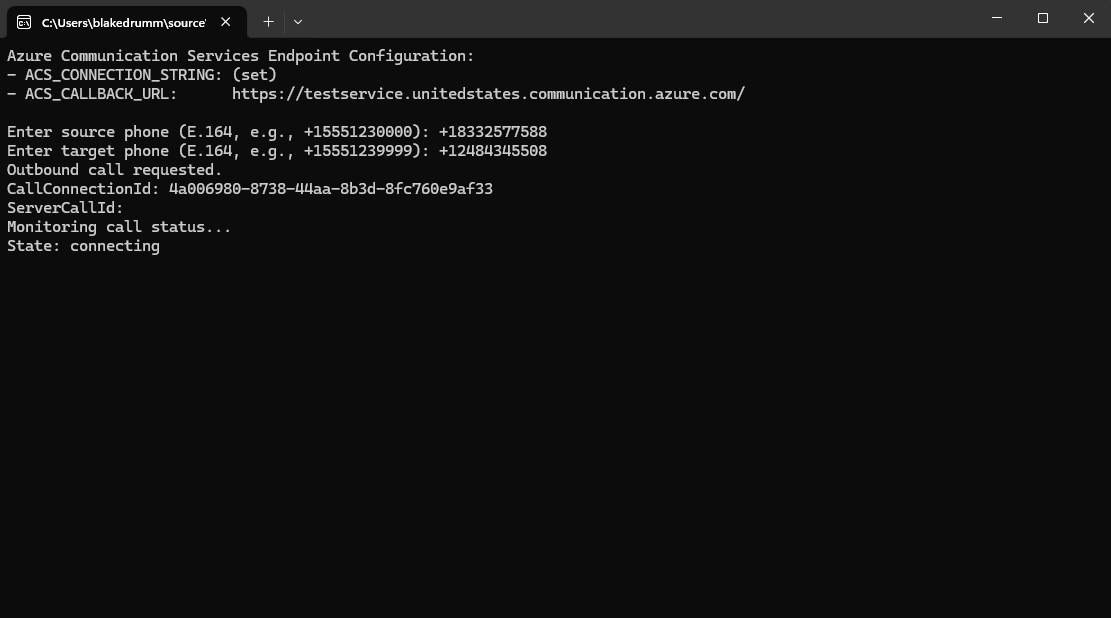
The console tool performs the following steps:
-
Accepts two command-line parameters:
- ACS source phone number
- Target PSTN phone number
-
Creates a CallAutomationClient using your ACS connection string.
-
Builds a CallInvite using the source and target numbers.
-
Sends a CreateCall request to the ACS endpoint.
-
Prints the CallConnectionId and ServerCallId returned by ACS.
- Exits immediately — because ACS handles all call progression asynchronously.
What It’s Ideal For
- Verifying ACS outbound calling works
- Testing newly purchased phone numbers
- Troubleshooting 401/403/BadRequest failures
- Ensuring your ACS access key is correct
- Validating resource deployment issues
- Proving connectivity before building more complex automation
What It’s Not Designed For
- Monitoring call state in real-time
- Handling media, DTMF, or recording
- Complete IVR or call-flow logic
- Replacing full Call Automation workflows
This tool is intentionally focused and minimal.
 Callback URL Requirements
ACS requires a public callback endpoint for call events. This is used to deliver:
- CallConnected
- ParticipantsUpdated
- CallDisconnected
- Media events
Even if you aren’t using callbacks yet, the callbackUri must be:
- a valid URI
- publicly accessible
- HTTPS recommended
If you’re just validating call initiation, you can temporarily specify a placeholder endpoint.
For full automation, you’ll want a real listener (Azure Functions, App Service, Ngrok, etc.).
 Common Issues When Testing ACS Calls
Here are some real-world issues I’ve seen while helping customers:
❌ 401 Unauthorized
Typically caused by:
- Incorrect access key
- Expired regenerated key not updated in code
- Wrong endpoint region
❌ 403 Forbidden
Usually means:
- The ACS phone number is not enabled for PSTN
- Phone number is missing from the resource
- You’re calling a restricted destination
❌ Call never arrives
Often due to:
- Incorrect E.164 formatting (ACS is strict)
- Callback endpoint unreachable
- Resource not provisioned for PSTN
The console tool makes diagnosing these issues much easier — if an outbound call fails, the response error tells you why.
 Download the Tool
You can download the tool or review the source code here:
🔗 Download the ACS Outbound Calling Tool Executable
https://files.blakedrumm.com/ACS-CallExample-Console-Executable.zip
🔗 Source Code Repository
https://github.com/blakedrumm/ACS-CallExample-Console
Feel free to fork it, extend it, or incorporate it into your own automation workflows.
 Final Thoughts
Azure Communication Services is extremely powerful once you understand its event-driven architecture. Tools like this console caller make it easier to validate your environment, test scenarios quickly, and remove uncertainty during deployments.
If you’re working with ACS and need help diagnosing issues or extending call workflows, feel free to reach out — I’m always happy to help troubleshoot or share lessons learned.

Share on: